
Anki Cards - Make Flashcards Fast
Build Anki flashcards as you read, then export a .txt Anki imports directly. Type them or right-click text. Local, no account.
- Works on
- Chrome
- Version
- 3.0.3
The card you meant to make while reading is the card you never make, because it means leaving the page and opening Anki. Collect fronts and backs in a popup as you go, then export the deck as a tab-separated file and import it in one pass.
Making flashcards usually means breaking your flow to switch apps. This lets you build an Anki deck right in the browser while you read, then hands you a file Anki imports directly.
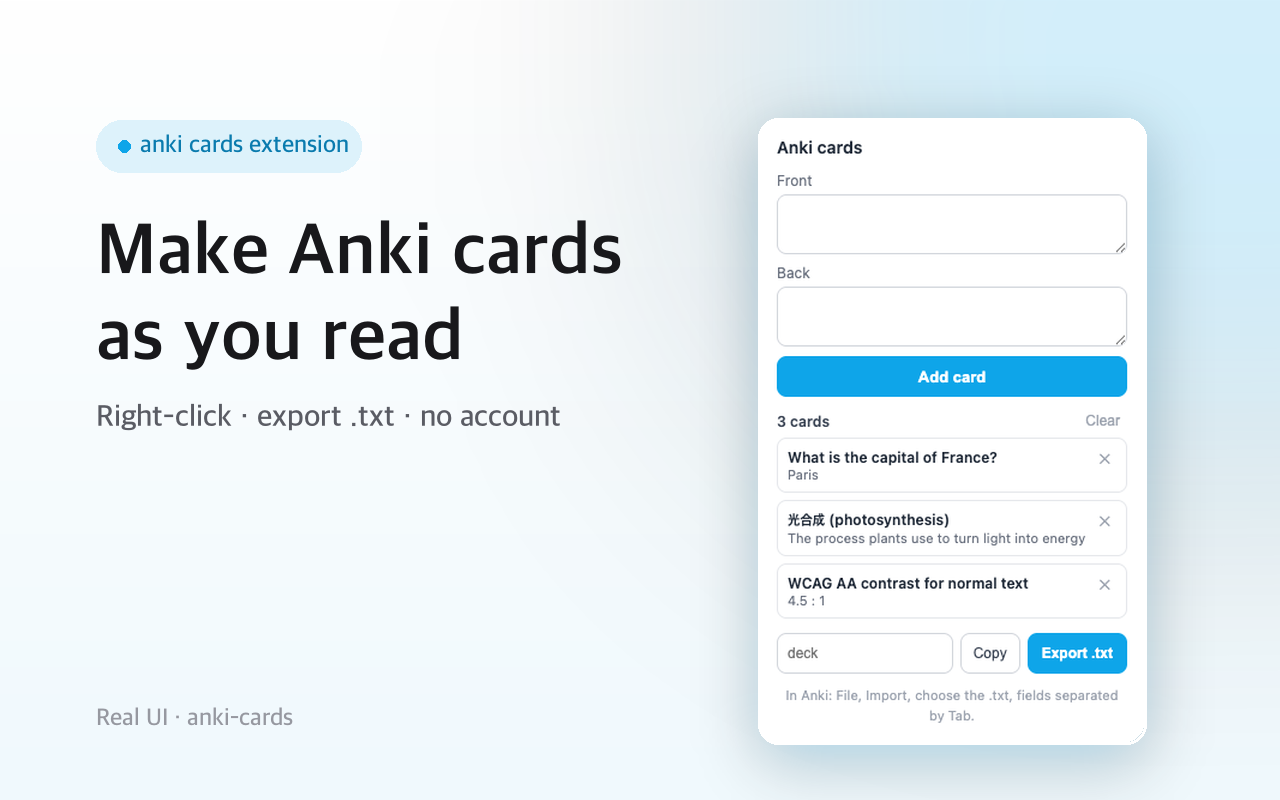
Type a front and back, or right-click any selected text to drop it in as the front and fill the answer later. Your growing deck shows in the popup, where you can remove cards or clear it. When you're ready, export a tab-separated .txt — the format Anki imports natively — or copy the whole deck to your clipboard.
The deck lives on your device. No account, no sync, nothing uploaded.
Screenshots
What it does
Build a deck of front/back cards in the browser.
Right-click selected text to start a card.
Export a tab-separated .txt that Anki imports directly.
Copy the whole deck to the clipboard.
Runs locally
no account, no sync, no tracking.
When you'd reach for it
Turning a language article into vocabulary cards
Highlight a word you don't know, right-click, and choose the option to add the selection as a card front. The toolbar icon picks up a + badge so you remember something is queued. Open the popup and the front is already filled in with the back field focused, ready for your definition.
Studying documentation or lecture notes
Type a question in the Front box and the answer in the Back box, then press Add card. Ctrl+Enter or Cmd+Enter from the back field adds the card without reaching for the mouse, so a run of ten cards stays on the keyboard. The list underneath shows the deck so far with an ✕ on each row.
Importing what you collected into Anki
Name the deck in the small field next to the export buttons and the file is saved under that name, sanitized to letters, numbers and dashes. In Anki, use File then Import and pick the .txt, with fields separated by Tab. If you'd rather paste into an existing note editor, Copy puts the same tab-separated text on your clipboard.
How to use it
- 01As you read, right-click text and choose "Add as Anki card", or type a front and back in the popup.
- 02Build up your deck; remove any card you don't want.
- 03Click Export .txt, then in Anki: File, Import, and pick the file.
Permissions & privacy
Single purpose
Single purpose: Build a deck of flashcards and export it as a file that Anki can import. Permission — storage: Used only to keep the user's card deck locally (chrome.storage.local). Permission — contextMenus: Used only to add the right-click option that adds selected text as a card front. Host permissions: None. No host_permissions and no <all_urls>. Selected text is provided by the context-menu event; the extension reads no other page content. Remote code: None. All code is bundled; nothing is fetched or eval'd at runtime. The .txt export is generated locally in the browser. Data collection / transmission: None. Cards are stored locally and exported only on the user's action. No data is collected or transmitted.
Runs entirely in your browser. Your cards are stored locally on your device and exported only when you choose. Nothing is uploaded and no data is collected. Independent extension, not affiliated with Anki or AnkiWeb. It runs only the code shipped inside the package — no remote code is fetched.
Questions people ask
How do I make Anki flashcards from a web page?
Select the text you want on the front of the card, right-click it, and choose the add-as-card-front option. Then open the extension popup, fill in the back, and press Add card. Repeat as you read; the deck accumulates in the popup until you export it.
What file format does the export use, and will Anki accept it?
It writes a plain .txt with one card per line and a Tab between the front and the back, which is the layout Anki's importer reads natively. Choose File then Import in Anki and set the separator to Tab. Any tab characters inside your own text are turned into spaces so the two fields never split into three.
Can a card have more than one line of text?
Yes. Line breaks inside a field are converted to <br> on export, which is how Anki keeps multi-line content in a single field. Type the back with as many lines as you want; it arrives as one field with the breaks preserved rather than spilling onto the next line of the file.
What permissions does it need, and where is my deck kept?
The manifest declares exactly two permissions: storage and contextMenus. Storage holds your deck in chrome.storage.local on your machine; contextMenus adds the right-click entry. There are no host permissions and no content script, so the only page text it ever sees is the selection Chrome hands it when you use that menu item.
How do I remove a card or start a new deck?
Each row in the popup list has an ✕ that deletes that card, and the Clear link next to the card count empties the whole deck. Exporting does not clear anything, so after importing into Anki you clear the deck yourself before starting the next batch.
Related extensions
 Cite This Page - APA, MLA, BibTeX
Generate an APA, MLA, Chicago or BibTeX citation for any web page in one click. Runs locally, editable fields, no sign-in.
 Language Learning - Vocabulary & Quiz
Save vocabulary words and practice with quizzes.
 SEO Toolkit5K+ users
All-in-one SEO analysis: on-page score, SERP preview, keyword density, broken links, heading structure, and meta tag viewer.
 GitHub 한국어 (GitHub Korean)3K+ users
Turns GitHub's menus, buttons and settings labels into Korean as the page loads. Dev terms stay in the form you actually say, plus release and status alerts.
 KoreaDropdown800+ users
A Chrome extension that automatically selects 'Korea' in dropdown menus on websites.
 Eye Rest Reminder78 users
Reminds you to rest your eyes and prevent digital eye strain with gentle break reminders.