Bionic Reading - Faster Reading
Bolds the first part of every word so your eyes fixate faster and read with less effort. One click to toggle, runs locally.
- Works on
- Chrome
- Version
- 3.0.3
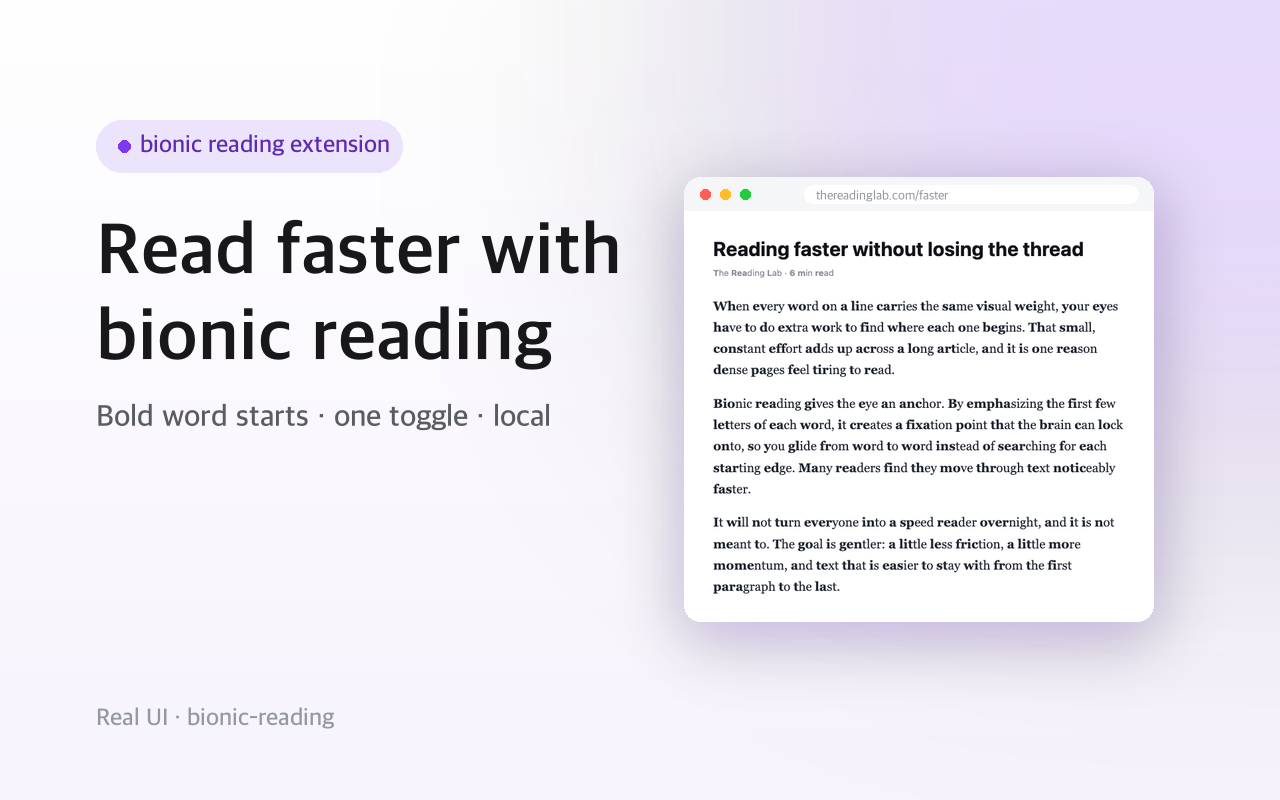
A long article is a wall of text where every word carries the same weight, and your eyes keep hunting for where each one begins. This bolds the first letters of every word on the page you are reading, then puts the text back exactly as it was when you toggle it off.
When every word looks the same weight, your eyes work to find where each one starts. This bolds the first few letters of each word, giving your eyes a fixation point so you move through text faster and with less effort.
Click the button (or press Alt+Shift+B) on any article and the page is re-styled in place. Click again to turn it off and the original text comes right back. It skips code, inputs, and editable fields so it never gets in the way.
Nothing is uploaded and nothing is tracked.
Screenshots
What it does
Bolds the start of each word to guide the eye.
One click or Alt+Shift+B to toggle on and off.
Restores the original page exactly when turned off.
Skips code blocks, inputs, and editable text.
Runs locally
no login, no servers, no tracking.
When you'd reach for it
Getting through a long article
You are halfway down a 3,000-word piece and your eyes keep sliding off the line. Press Alt+Shift+B and the paragraphs are rewritten in place with the leading letters of each word bolded, giving every word a starting marker. The layout does not move, because the bolding happens inside an inline element that keeps the original text flow.
Reading documentation without wrecking the code samples
Technical pages mix prose with snippets you need to read character by character. The prose gets the treatment while code, pre, kbd and samp blocks are left untouched, along with textareas and anything the page marks as editable. So a config value or a shell command still reads exactly as written.
Reading in a second language
Unfamiliar words are the ones you have to re-scan most. Bolding the opening letters gives each word a visible boundary, which some readers find easier to follow across a dense line. Turn it off on the sentence you want to read literally and the page returns to normal instantly.
How to use it
- 01Open an article or page.
- 02Click the toolbar button, or press Alt+Shift+B, or right-click and choose the toggle.
- 03Click again to switch it off.
Permissions & privacy
Single purpose
Single purpose: Re-style the text of the current page so the first part of each word is bold, to aid reading. Permission — activeTab: Used to access the current tab only when the user activates the effect (toolbar click, Alt+Shift+B, or right-click). Permission — scripting: Used to inject the styling script (bionic.js / bionic.css) into the active tab on demand. No content scripts run automatically. Permission — storage: Used only to remember an optional fixation-strength preference (chrome.storage.local). Permission — contextMenus: Used only to add the right-click toggle. Host permissions: None. No host_permissions and no <all_urls>; page access is granted only at activation via activeTab. Remote code: None. All code is bundled; nothing is fetched or eval'd at runtime. Data collection / transmission: None. All processing is local.
Runs entirely in your browser and only when you turn it on. It re-styles the text of the page you activate it on and stores nothing but an optional strength preference. No data is sent anywhere. It runs only the code shipped inside the package — no remote code is fetched.
Questions people ask
How do I turn on bionic reading in Chrome?
Open the page you want to read and click the toolbar icon, press Alt+Shift+B, or right-click the page and choose Toggle bionic reading. Any of the three applies the effect to the tab you are on. Doing it again turns it off.
Does it permanently change the page?
No. Each text node is wrapped in a custom element that keeps a copy of the original string, and toggling off replaces every wrapper with that stored text. Reloading the page also clears it, since nothing runs until you activate it again.
How much of each word gets bolded?
About 45 percent of each word's letters, rounded, with a minimum of one letter so short words still get a marker. The value is read from a fixation-strength number in chrome.storage.local and clamped between 30 and 60 percent. There is no settings screen in this version, so the 45 percent default is what you get out of the box.
Why does nothing happen on some pages?
Chrome blocks extensions from injecting scripts into its own pages, so chrome:// URLs, the Web Store and the built-in PDF viewer will not respond. On regular pages, text inside script, style, noscript, textarea, code, pre, kbd and samp elements is skipped by design, as is any contenteditable region. If a page is mostly one of those, most of it will look unchanged.
What permissions does it declare, and when do they apply?
The manifest declares four permissions: activeTab, scripting, storage and contextMenus. There are no host permissions and no content scripts, which means the extension has no access to a tab until the moment you click the icon, press the shortcut or use the right-click item, and then only to that tab. Storage holds a single fixation-strength number, and contextMenus adds the right-click item.
Related extensions
 Dark ModeNot published yet
Enable dark mode on any website instantly. Protect your eyes with one-click dark theme for all web pages.
 Dyslexia Font - Easier ReadingNot published yet
Make any page easier to read: dyslexia-friendly font, more spacing, bigger text, and a soft tint. Local, one toggle.
 Hangul Font ChangerNot published yet
Replace every Korean letter on the web with a font you love. Pretendard, Noto Sans KR, custom fonts and more.
 Read AloudNot published yet
Select any text on the web and have it read aloud instantly. Adjustable speed, voice, and language.
 Speed Reader - RSVP Fast ReadingNot published yet
Read any article or selected text one word at a time at up to 1000 wpm. Fully local, no sign-in, no data collected.
 SEO Toolkit5K+ users
All-in-one SEO analysis: on-page score, SERP preview, keyword density, broken links, heading structure, and meta tag viewer.