
BugSnap
One-click bug reports with screenshot, console logs & environment info.
- Users
- 2
- Works on
- Chrome
- Version
- 3.0.2
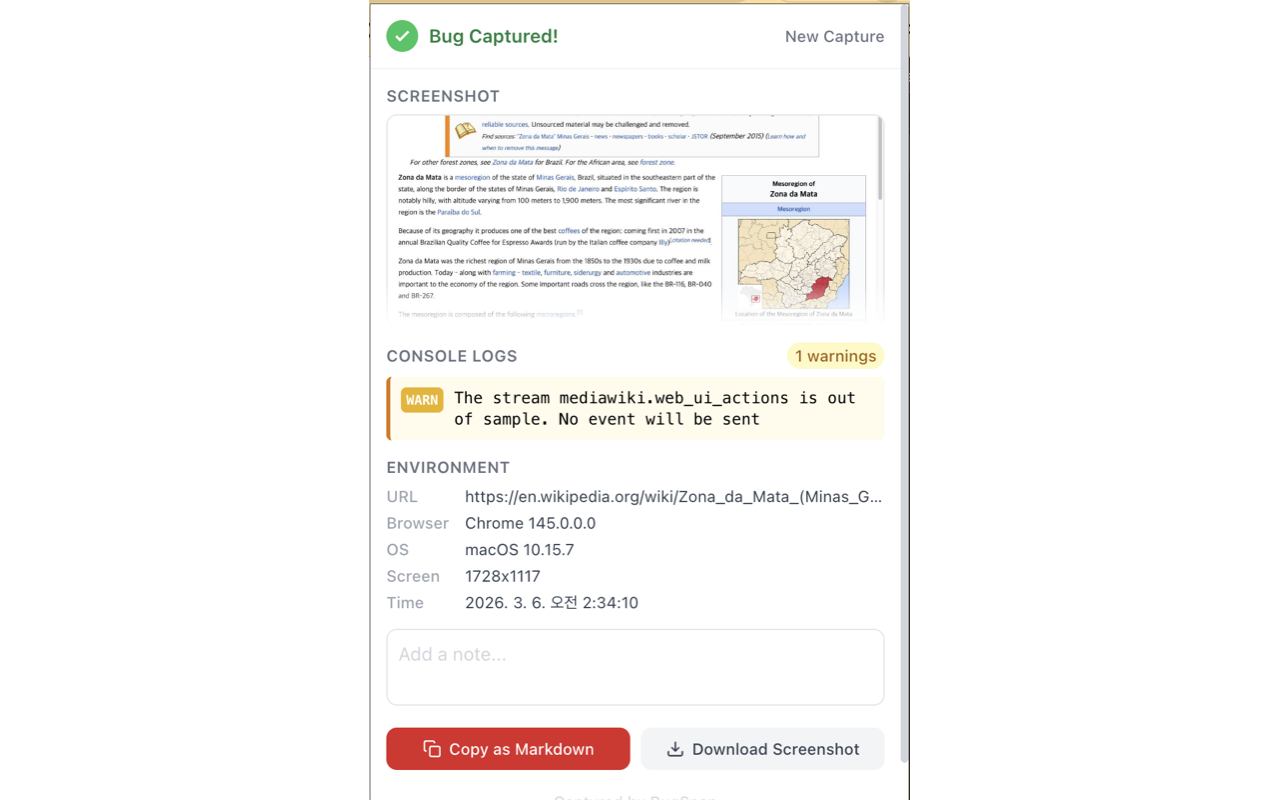
Writing up a bug means taking a screenshot, scrolling back through red console text to copy the stack trace, and then looking up your own browser version. One click on the capture button collects all three and hands you a Markdown block ready to paste into the ticket.
BugSnap captures everything you need for a bug report in one click — screenshot, console errors, and environment info.
Stop manually copying error messages, taking screenshots, and typing out your browser version. Just click "Capture Bug" and BugSnap collects it all instantly.
What gets captured:
After capturing:
Built for developers and QA teams:
BugSnap formats everything as clean Markdown with code blocks for stack traces. No more "it doesn't work" bug reports — give your team the full picture every time.
Privacy first:
Screenshots
What it does
Full-page screenshot of the current tab
Console errors and warnings with full stack traces
Browser name and version
Operating system
Screen resolution
Page URL and timestamp
Copy as Markdown
paste directly into GitHub Issues, Jira, Linear, or any bug tracker
Download the screenshot as PNG
Add notes to provide extra context
Browse your recent captures (up to 10 stored locally)
All data stays on your device (chrome.storage.local)
No accounts, no servers, no data collection
Screenshots and logs are never uploaded anywhere
Console capture runs only on pages you actively capture
When you'd reach for it
Filing an issue without the follow-up questions
Copy as Markdown produces a Bug Report heading, an environment list with the page URL, browser and version, operating system, screen resolution and timestamp, then each console error and warning inside a fenced code block with its stack. Paste it into GitHub Issues, Jira or Linear and the reproduction details are already there.
Catching an error you did not have DevTools open for
A small script runs on each page from document start and keeps the last fifty console entries in memory, so the errors that fired before you noticed anything are still available. Capturing reads that buffer, which means you can report an intermittent failure without having to reproduce it a second time.
Working through a QA pass
The last five captures stay in the popup as a list of thumbnails with page title, time and a red count of errors found, and clicking one reopens the full report. Each capture has its own note field, so you can type what you were doing at the time and it stays attached to that entry.
Permissions & privacy
Single purpose
BugSnap has a single purpose: capturing bug report data (screenshot, console logs, and environment info) from the current tab and formatting it for easy sharing with development teams. The extension only activates when the user clicks the capture button.
It runs only the code shipped inside the package — no remote code is fetched.
Questions people ask
How do I take a screenshot with the console errors in Chrome?
Open the popup on the page that is misbehaving and click the capture button. It grabs the tab image, pulls the buffered console output and reads the browser, OS and screen resolution in one pass, then shows all of it as a report. From there, Copy as Markdown puts the text on the clipboard and the download button saves the image.
Does it capture the whole page or only what is on screen?
Only the visible area of the active tab, which is what chrome.tabs.captureVisibleTab returns. The image is taken as JPEG at quality 70 and scaled down to 1280 pixels wide if it is larger, which keeps stored captures small enough to survive extension storage limits. Scroll to the part that matters before you capture.
Do I need DevTools open for logs to be recorded?
No. The console wrapper is installed at document start, so it collects entries whether or not the DevTools panel is open. It keeps the fifty most recent console.error, console.warn and console.log calls plus uncaught errors and unhandled rejections, each message truncated at 5000 characters. Anything logged before this build was installed is not there.
What exactly goes into the copied Markdown?
A heading, the environment list, and then only the error and warning entries, each in a code fence with its stack trace if one was attached. Plain console.log lines appear in the popup list but are left out of the Markdown so the ticket stays readable. Anything you typed in the note box is appended as a Notes section.
What permissions does it declare, and what is each one for?
The manifest declares storage, activeTab, tabs, scripting, notifications and webNavigation, plus host access to all sites. Storage keeps the recent capture reports in chrome.storage.local. activeTab and tabs are how a capture identifies and photographs the tab you are looking at. Scripting injects the small script that reads the console buffer and screen size out of the page. Notifications covers system notifications, and webNavigation gives the extension page-load events for a tab. The all-sites host access is what lets the console-collecting content script match every http and https page, which is why the buffer is already filling before you decide to capture.
Related extensions
 SEO Toolkit5K+ users
All-in-one SEO analysis: on-page score, SERP preview, keyword density, broken links, heading structure, and meta tag viewer.
 Download Claude Artifacts - Save Code & Docs5 users
Download Claude artifacts as files. Save every code block, doc, and app in a conversation with the correct file extension.
 AI Credit Meter - v0, Lovable, Bolt
Track your remaining credits on v0, Lovable and Bolt, with burn-rate and a projected run-out date. Read-only, all local.
 GitHub Unfollowers & Un-stars Tracker
See who unfollowed you on GitHub, and who un-starred your repo — the thing GitHub never tells you. Official API, all local.
 Page Ruler
Measure any element on a webpage in pixels. Drag to measure areas, hover to see dimensions. Free ruler for designers.
 Stack Overflow 한국어 (Korean)
Use Stack Overflow every day but find the English interface a bit of friction?