
Page Ruler
Measure any element on a webpage in pixels. Drag to measure areas, hover to see dimensions. Free ruler for designers.
- Works on
- Edge
- Version
- 3.0.2
You can see that the spacing is off. Proving it usually means a screenshot pasted into a design tool and a lot of squinting. This puts a crosshair and a pixel readout directly on the live page.
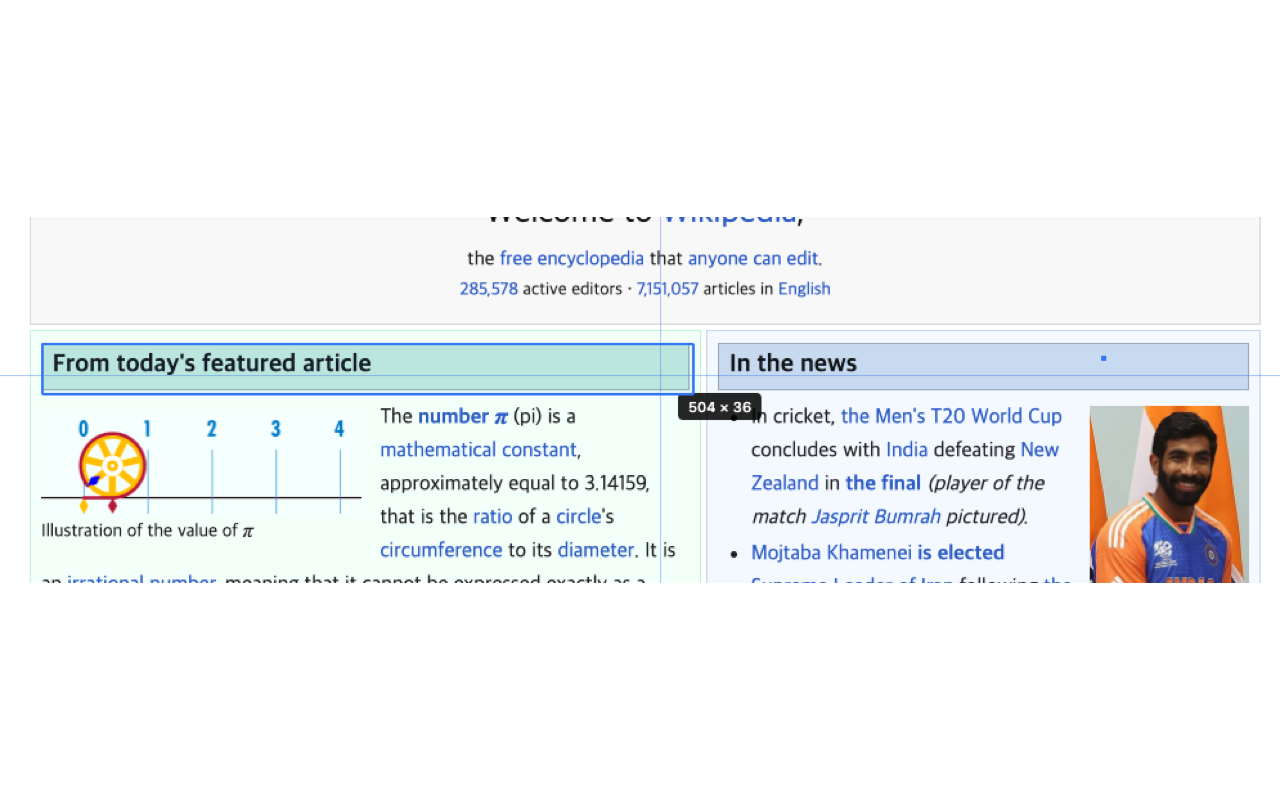
Page Ruler lets you measure any element or area on a webpage in pixels. Drag to draw a ruler across any region, inspect element dimensions, add guidelines, and copy measurements — all the tools you need for pixel-perfect web design and development.
Screenshots
What it does
Drag-to-Measure
Click and drag anywhere on the page to draw a measurement box and see the width, height, and position in pixels.
Element Inspector Mode
Hover over any HTML element to instantly see its exact dimensions and bounding box.
Guidelines
Add horizontal and vertical guidelines to align and compare elements across the page.
Color Customization
Change the ruler and guideline colors to ensure visibility against any background.
Copy Dimensions
Copy measured width, height, top, left, and other position values to your clipboard with one click.
Pixel-Perfect Accuracy
All measurements are calculated directly from the page's rendered layout for precise results.
When you'd reach for it
Checking a build against a mock
Element mode outlines whatever is under your cursor and shows its width and height beside the pointer. Turn on Show CSS info and the tooltip adds padding, margin and font-size, so you can compare a component to the spec without opening the inspector. Clicking then copies those values as CSS declarations.
Measuring the gap between two things
Distance mode is for the questions a single box can't answer: how far apart are this button and that heading. Click one element, click the other, and a dashed line appears with the straight-line distance and the horizontal and vertical difference. Both picks are elements, so you don't have to drag precisely.
Reading sizes and colors off a live page
Turn on Show colors and hovering an element adds its background and text color as hex values next to the size. It works on any page you can load, including a staging site or someone else's layout you're trying to understand. The ruler color itself is adjustable, which matters on dark or busy backgrounds.
How to use it
- 01Click the Page Ruler icon in the Chrome toolbar to activate measurement mode.
- 02Click and drag on the page to measure any rectangular area.
- 03Switch to Element Inspector mode to hover and auto-detect element boundaries.
- 04Add guidelines by clicking on the ruler edges.
- 05Click dimensions to copy values to your clipboard.
Permissions & privacy
Single purpose
Page Ruler has a single purpose: to provide on-page measurement tools that allow users to measure pixel dimensions of any area or element on a webpage by dragging a ruler or inspecting elements, and to copy those measurements for use in design and development.
Page Ruler processes everything locally in your browser. No page content, measurements, or browsing data is collected, stored, or transmitted to any external server. Your browsing activity is never tracked. It runs only the code shipped inside the package — no remote code is fetched.
Questions people ask
How do I measure pixels on a web page in Chrome?
Click the toolbar icon, pick a mode, and press Start Measuring. A crosshair overlay with horizontal and vertical guide lines follows your cursor, and every measurement is rounded to whole pixels and shown next to the pointer. The overlay needs to run inside the page, so browser pages such as chrome:// settings and the extension store are out of reach.
What is the difference between the Drag, Element and Distance modes?
Drag lets you pull a rectangle over any region and reads out its width and height, which is what you want for areas that aren't a single element. Element snaps to the element under the cursor and uses its real bounding box. Distance takes two clicks and reports the center-to-center distance between the two elements, along with the horizontal and vertical difference.
Can I copy the measurement out?
Yes, in two places. The popup keeps the last measurement and the Copy Dimensions button puts it on your clipboard as a width by height value. In Element mode with Show CSS info enabled, clicking an element copies a block of CSS — width, height, padding, margin, font-size, plus background and text color if Show colors is on — and a small toast confirms the copy.
How do I turn the ruler off, and why doesn't the page respond while it's on?
Press Escape, or open the popup and hit Stop Measuring. While measuring, a transparent layer sits over the page and swallows clicks so that measuring a link doesn't navigate away — that's intentional. In Distance mode the first Escape clears a pending first pick, and the next one exits measuring entirely.
What permissions does it need, and what gets stored?
The manifest declares activeTab and storage, and a content script is registered for all sites so the overlay can be drawn on whichever page you're measuring — the listing's own justification is that the extension cannot know in advance which site you will want to measure. ActiveTab is described there as taking effect when you click the extension icon, and nothing is drawn until you press Start Measuring. Storage holds preferences: the ruler color, the last mode used, the two toggles, and the most recent width and height.
Related extensions
 SEO Toolkit5K+ users
All-in-one SEO analysis: on-page score, SERP preview, keyword density, broken links, heading structure, and meta tag viewer.
 Download Claude Artifacts - Save Code & Docs5 users
Download Claude artifacts as files. Save every code block, doc, and app in a conversation with the correct file extension.
 BugSnap2 users
One-click bug reports with screenshot, console logs & environment info.
 AI Credit Meter - v0, Lovable, Bolt
Track your remaining credits on v0, Lovable and Bolt, with burn-rate and a projected run-out date. Read-only, all local.
 GitHub Unfollowers & Un-stars Tracker
See who unfollowed you on GitHub, and who un-starred your repo — the thing GitHub never tells you. Official API, all local.
 Stack Overflow 한국어 (Korean)
Use Stack Overflow every day but find the English interface a bit of friction?