
ScreenDiet
Your browsing nutrition label. See how you consume the internet.
- Works on
- Chrome
- Version
- 3.0.2
You can guess which sites ate your afternoon, but guessing is comfortable. This counts the seconds your active tab spends on each hostname and prints the day back at you in the format of a nutrition facts panel.
ScreenDiet turns your browsing history into a nutrition facts label — just like the one on the back of your cereal box.
Every time you browse the web, ScreenDiet quietly tracks how long you spend on each site and sorts your activity into six "nutrient" categories:
🥦 Fiber — Productivity tools (GitHub, Notion, Figma, Google Docs)
🥩 Protein — Learning (Stack Overflow, MDN, Medium, Coursera)
💧 Water — Communication (Gmail, Slack, Discord, Zoom)
🍞 Carbs — News (Hacker News, TechCrunch, The Verge, BBC)
🍭 Sugar — Social Media (Instagram, X/Twitter, Reddit, TikTok)
🍔 Fat — Entertainment (YouTube, Netflix, Twitch, Spotify)
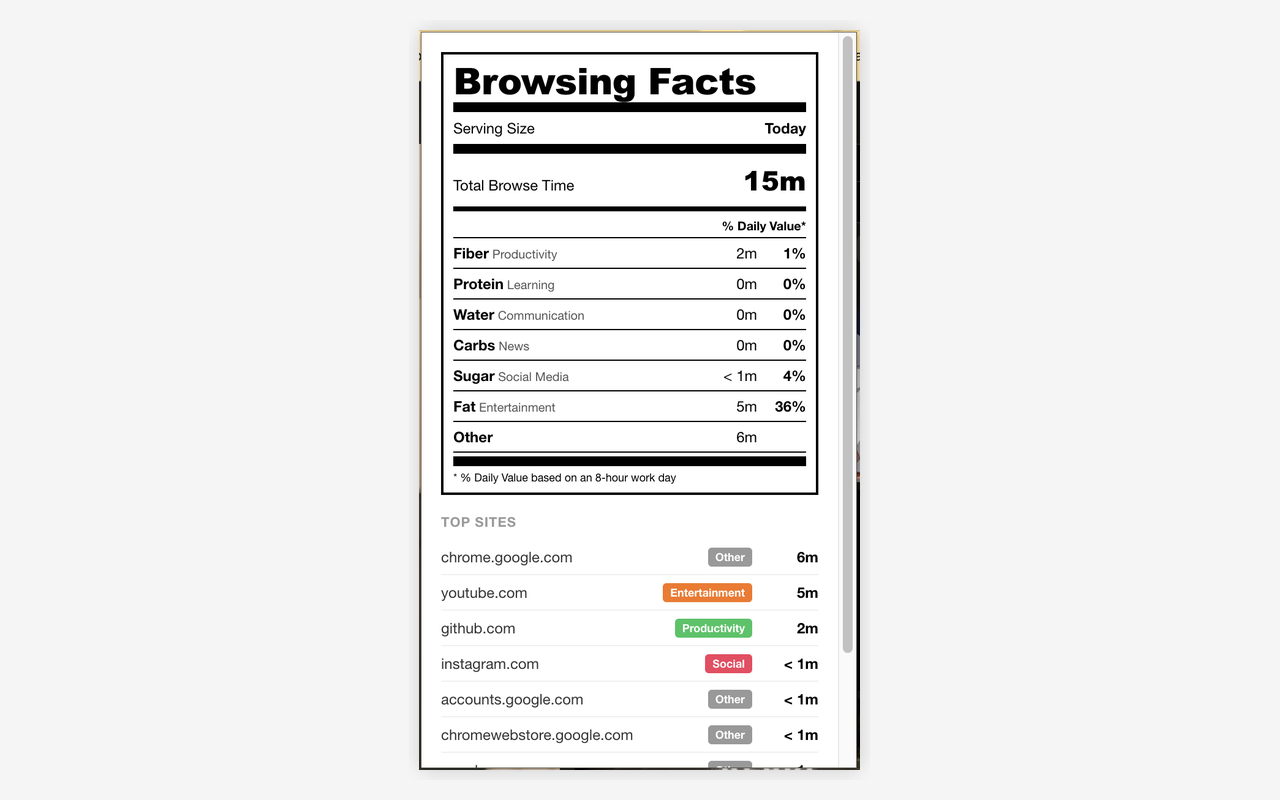
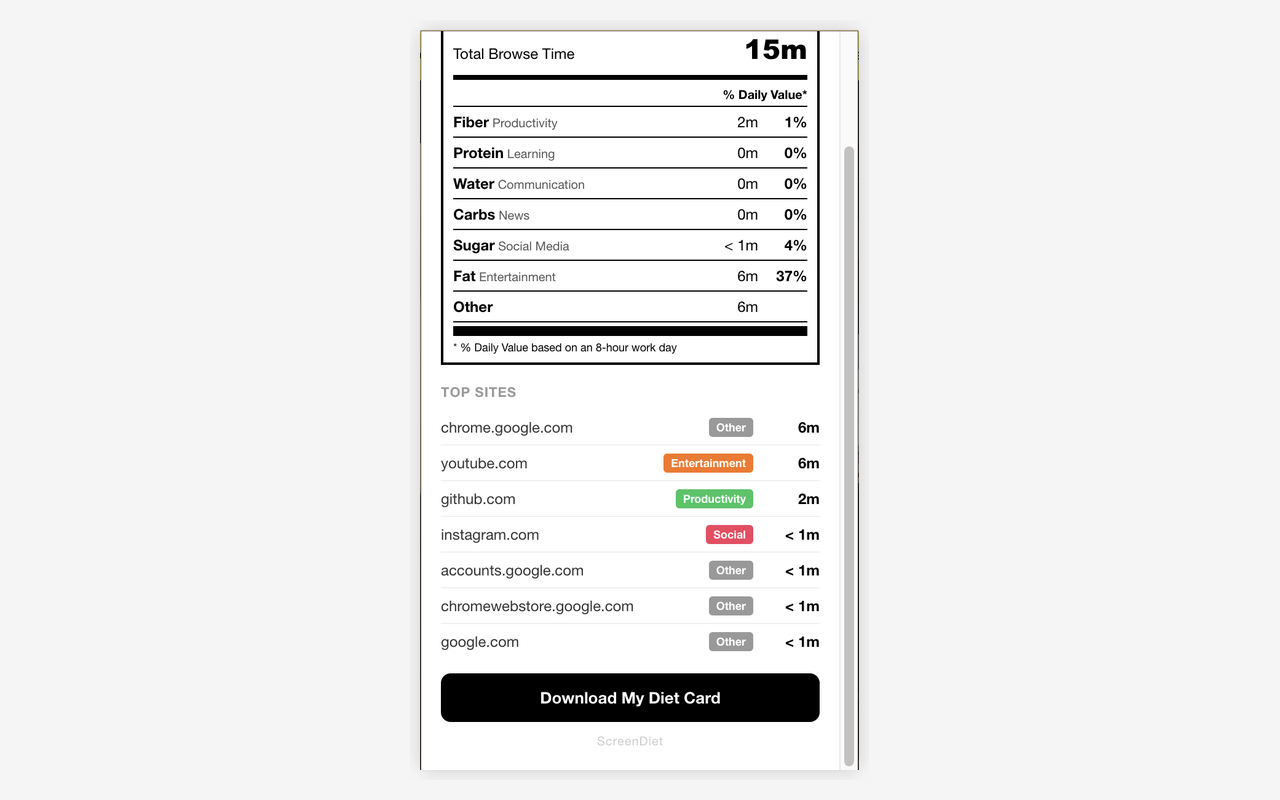
At the end of the day, open the popup and see your Browsing Nutrition Facts:
The result? A brutally honest mirror of your internet diet.
Share your stats:
Hit the download button to generate a shareable card image. Post your "internet diet" to social media and compare with friends. Seeing "Sugar 300%" is funny — and maybe a little too real.
Privacy first:
Screenshots
What it does
Total browse time
Time spent per category
% Daily Value based on a recommended 8-hour workday
Your top 7 most-visited sites
All data stays on your device (chrome.storage.local)
No accounts, no servers, no data collection
Old data is automatically cleaned up after 30 days
Only two permissions: tabs (to see which site you're on) and storage (to save your data)
When you'd reach for it
Finding out where the day actually went
Open the popup and the top line is total browse time for today, followed by six rows: Fiber for productivity tools, Protein for learning, Water for communication, Carbs for news, Sugar for social, Fat for entertainment. Each row carries minutes and a percentage.
Naming the two or three sites that dominate
Under the label sits a Top Sites list of the seven hostnames you gave the most time to, each tagged with its category and its total for the day. The www prefix is stripped, so you read domains rather than URLs. It updates while the popup is open.
Turning the day into something you can post
The Download My Diet Card button renders a 900x1200 PNG of the label on a canvas and saves it as screen-diet with today's date. Sugar at 300% reads better as a picture than as a sentence, which is roughly the point of the format.
Permissions & privacy
Single purpose
ScreenDiet has a single purpose: tracking the user's browsing time per website and displaying it as an FDA-style nutrition facts label. The extension monitors which site is active, categorizes domains into six groups (productivity, learning, communication, news, social media, entertainment), and presents a daily summary in the popup. Users can also download a shareable image card of their browsing stats.
It runs only the code shipped inside the package — no remote code is fetched.
Questions people ask
How can I see how much time I spend on each website in Chrome?
Install this and browse normally, then click the toolbar icon at the end of the day. Time is attributed to the hostname of the active tab in the focused window, saved every 30 seconds and again on every tab switch, URL change or window focus change. Only http and https pages are counted.
What is % Daily Value based on?
An eight-hour work day, split into a budget per category: 240 minutes for productivity, 120 for communication, 60 for learning, 30 for news, 15 for social media and 15 for entertainment. Forty-five minutes on Instagram therefore reads as Sugar 300%. The figure is a ratio against those budgets, not a recommendation from anyone.
How are sites sorted into categories?
Through a fixed list of roughly 145 domains bundled with the extension — github.com is productivity, stackoverflow.com is learning, netflix.com is entertainment, and so on. Subdomains fall back to their parent domain, so app.slack.com is treated as slack.com. Anything not on the list is totalled under Other rather than guessed at.
What permissions does it declare, and where are the totals kept?
The manifest declares storage, tabs and webNavigation, plus host_permissions for all URLs. Tabs is what allows reading the active tab's URL, from which only the hostname is kept. Storage holds each day's totals in chrome.storage.local under a date key such as sd-2026-07-29, mapping hostname to seconds; keys older than 30 days are removed when the extension installs or updates. webNavigation reports when a tab has finished navigating, which is how an address change inside a single-page site closes out one hostname and starts the next, and the all-URLs host access is what lets the extension follow tabs on any site rather than a fixed list.
Does it count tabs I left open in the background?
No. Only one site accrues time at a time — the active tab of the focused window. Switching tabs closes out the previous site's total and starts the new one, and when the browser window loses focus entirely, counting stops until you come back. A stack of idle background tabs adds nothing to the day.
Related extensions
 Eye Rest Reminder78 users
Reminds you to rest your eyes and prevent digital eye strain with gentle break reminders.
 Quick Memo74 users
A simple and elegant memo extension for your browser
 YouTube Detox47 users
Removes recommended videos from YouTube homepage and video pages.
 Focus Guard3 users
Block distracting sites with "Why are you here?" prompt. Reduce YouTube, X, Reddit, Instagram use — digital detox, 100% local.
 Notion Table & Database to CSV / Markdown2 users
Notion table to Markdown or CSV in one click. Adds a Copy button above any Notion table or database view. No login, no API.
 Air Quality Monitor
Real-time air quality monitor for Korean cities (PM2.5/PM10)