
Web Highlighter
Highlight text on any webpage like a marker pen. Save highlights, choose colors, and revisit anytime. Free highlighter tool.
- Works on
- Edge
- Version
- 3.0.2
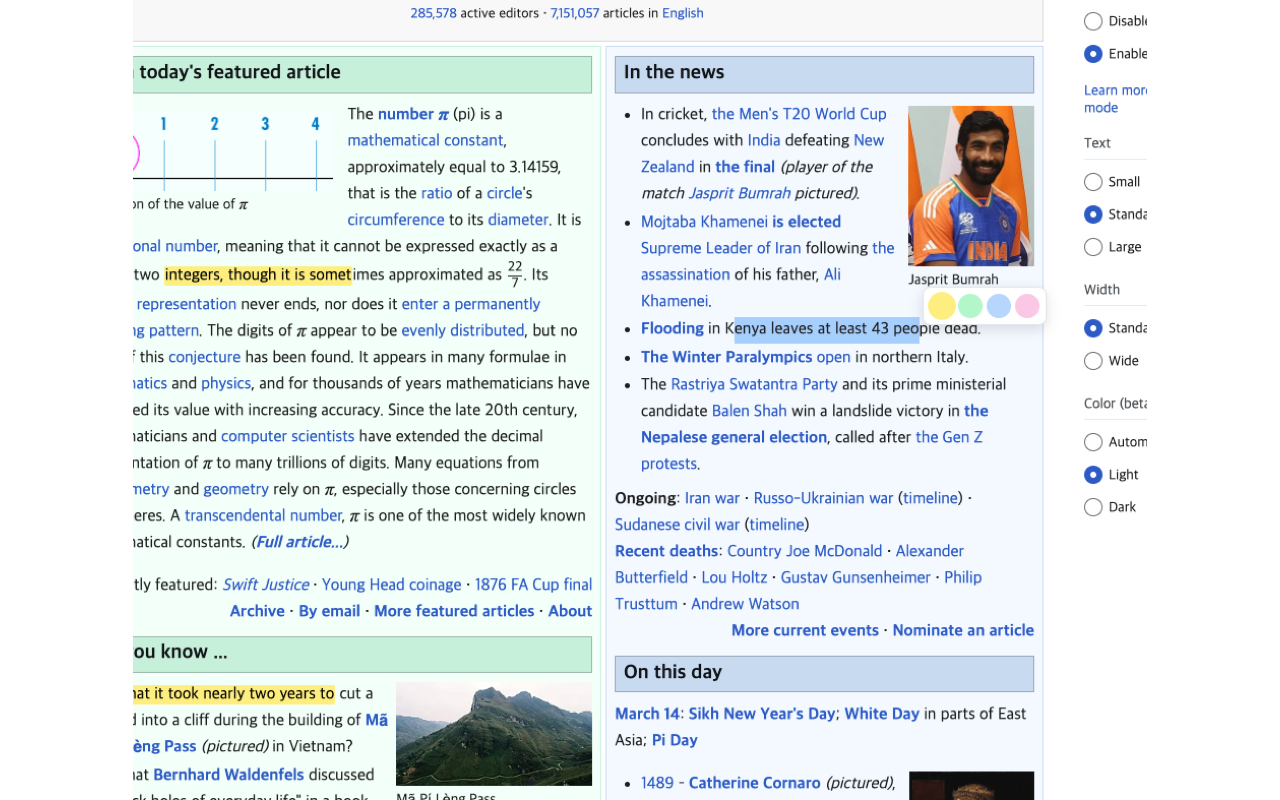
You find the one paragraph that matters, close the tab, and three days later you are scrolling the same article hunting for it again. Select the text and a small row of color circles appears where you released the mouse — one click marks the passage and stores it.
Web Highlighter lets you highlight text on any webpage with multiple colors and automatically saves your highlights so they reappear when you revisit the page. Perfect for research, studying, and reading — mark important passages, organize with colors, and never lose your highlights.
Screenshots
What it does
4 Highlight Colors
Choose from four distinct highlight colors to categorize and organize your annotations.
Persistent Highlights
All highlights are automatically saved and restored when you revisit a page. Your highlights are always waiting for you.
Per-Page Storage
Highlights are organized by page URL, keeping your annotations neatly separated across different pages.
Delete Individual Highlights
Remove any single highlight without affecting others on the same page.
Copy Highlighted Text
Copy the text content of any highlight to your clipboard with one click.
Clear All
Remove all highlights from the current page at once when you want a fresh start.
Works on Any Webpage
Highlight text on articles, documentation, blogs, research papers, and any other webpage.
When you'd reach for it
Reading research papers and long articles
Mark the passages you actually need while you read, instead of promising yourself you will come back to the whole thing. The popup lists every highlight on that page in order, and each one has a copy button that puts the text on your clipboard. Four colors are enough to keep, say, findings apart from methodology.
Working through documentation
A guide runs a thousand lines and you need six of them. Highlight those lines once, and the next time you open that exact URL they are drawn again automatically. It saves collecting bookmarks for pages you have already read once.
Keeping a dozen open tabs separate
Highlights are stored under each page's own address, so one tab's marks never show up in another. Open the popup and you see only the highlights for the tab in front of you, with a count at the top. Clear All wipes the current page and leaves the rest alone.
How to use it
- 01Select any text on a webpage.
- 02Click the Web Highlighter icon or use the popup to choose a highlight color.
- 03The selected text is highlighted and automatically saved.
- 04Revisit the page anytime — your highlights are restored automatically.
- 05Right-click a highlight to delete it or copy its text.
Permissions & privacy
Single purpose
Web Highlighter has a single purpose: to allow users to highlight text on webpages with multiple colors, persist those highlights in local storage, and automatically restore them when the user revisits the page.
All highlights are stored locally in your browser using chrome.storage. No highlight data, page content, or browsing activity is ever sent to any external server. Your data stays entirely in your browser and under your control. It runs only the code shipped inside the package — no remote code is fetched.
Questions people ask
How do I highlight text on a web page in Chrome?
Select the text with your mouse and a small palette of four color circles appears next to the selection. Click yellow, green, blue, or pink and the selected text is wrapped in a colored mark and saved immediately. There is no menu to open first and nothing to set up before the first highlight.
Do highlights stay after I close the tab or restart the browser?
Yes. Each highlight is written to your browser's local extension storage under the page's full address, so reopening that address draws the marks again. They stay on the browser profile where you made them and are not copied to your other computers. If the page's own text has changed since you marked it, a highlight that no longer matches is skipped rather than placed in the wrong spot.
How do I remove a highlight?
Click the highlighted text on the page and the mark is removed from both the page and storage. You can also open the popup, hover the entry in the list, and use the delete button next to it. Clear All removes every highlight on the page you are currently viewing.
What permissions does it declare, and what does it store?
The manifest declares exactly two permissions, activeTab and storage, and no host_permissions. It does register a content script for all http and https pages, which is how the palette can appear on whatever article you are reading, so that script does run everywhere even though no host permission is granted. What it writes is the highlighted text, its color and the page address, all into chrome.storage.local on your own machine.
Which browsers and which pages does it work on?
It is listed on the Microsoft Edge Add-ons store and is built as a Manifest V3 extension, the format Chromium browsers use. Highlighting works on ordinary http and https pages. Browser system pages such as settings screens and the Web Store are off limits to every extension, and a tab that was already open when you installed it needs a reload before the palette appears.
Related extensions
 Eye Rest Reminder78 users
Reminds you to rest your eyes and prevent digital eye strain with gentle break reminders.
 Quick Memo74 users
A simple and elegant memo extension for your browser
 YouTube Detox47 users
Removes recommended videos from YouTube homepage and video pages.
 Focus Guard3 users
Block distracting sites with "Why are you here?" prompt. Reduce YouTube, X, Reddit, Instagram use — digital detox, 100% local.
 Notion Table & Database to CSV / Markdown2 users
Notion table to Markdown or CSV in one click. Adds a Copy button above any Notion table or database view. No login, no API.
 Air Quality Monitor
Real-time air quality monitor for Korean cities (PM2.5/PM10)