
Claude to Notion - Export & Save Chats
Send any Claude conversation to Notion or Obsidian in one click, or export it as Markdown, HTML or JSON. Runs locally.
- Works on
- Chrome
- Version
- 3.0.3
Getting a Claude conversation into your notes usually means selecting the whole thread, pasting it somewhere, and then cleaning up the mess where the roles ran together. An Export chat button on claude.ai hands you the whole thread in the format you actually want.
Claude has no built-in way to get a whole conversation into your notes. This adds a one-click Export button to claude.ai that turns the open chat into clean Markdown — ready to paste straight into Notion or Obsidian — or saves it as a file.
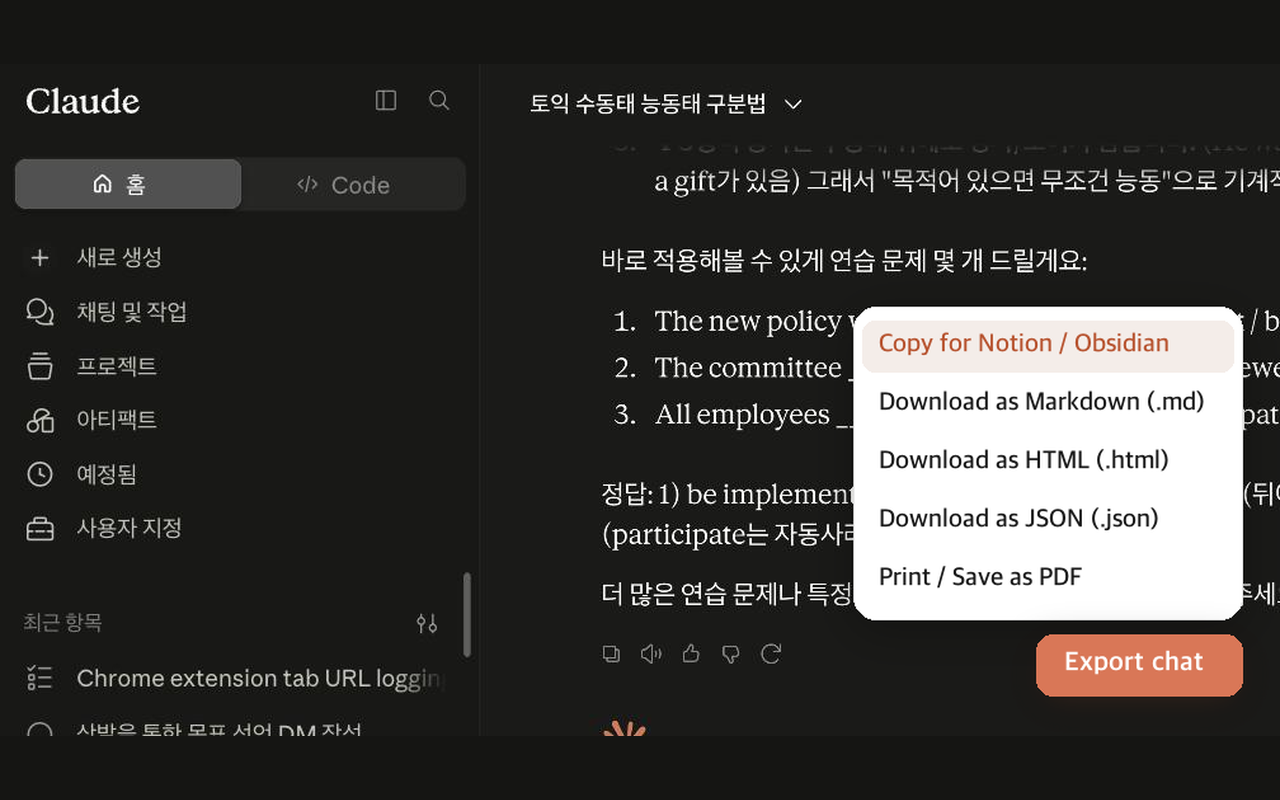
Open any Claude conversation, click Export, and choose:
It reads the conversation already on your screen — no account linking, no API keys, no sign-in, nothing uploaded.
Independent extension, not affiliated with Anthropic, Claude, or Notion.
Screenshots
What it does
Copy for Notion / Obsidian
the full thread as clean Markdown on your clipboard. Paste it into a Notion page or an Obsidian note and the headings, lists, and code blocks come across intact.
Download as Markdown (.md)
the same clean transcript as a file.
Download as HTML (.html)
a self-contained, styled transcript.
Download as JSON (.json)
structured turns for scripts and backups.
Print / Save as PDF
a formatted, printable view.
One-click "Copy for Notion / Obsidian"
clean Markdown, pastes with formatting intact.
Export the full conversation as Markdown, HTML, JSON, or PDF.
Keeps every turn in order, labelled You / Claude.
Files named from the conversation title, with a timestamp.
Runs entirely in your browser
no login, no servers, no tracking.
When you'd reach for it
Moving a research thread into Notion
Pick Copy for Notion / Obsidian and the conversation lands on your clipboard as Markdown, with the chat title as a top-level heading and every turn under a You or Claude heading. Paste it into an empty Notion page and those headings become real Notion headings, so the thread stays readable instead of arriving as one wall of text.
Keeping a chat in your Obsidian vault
Choose Download as Markdown and the file arrives named after the conversation, with a date and time appended so repeated exports of the same chat don't collide. Drop it into your vault and it's a normal note. The header line records when the export was taken, which matters when you come back to a thread you've since continued.
Archiving or reprocessing a conversation
The JSON option writes a structured file with the title, the source URL, an export timestamp, and every turn as a role-and-text pair, which is what you want if a script is going to read it later. HTML gives you a standalone, styled transcript to open in any browser, and Print opens that same transcript in a new tab ready for Save as PDF.
How to use it
- 01Open a conversation on claude.ai.
- 02Click the "Export chat" button at the bottom-right.
- 03Pick "Copy for Notion / Obsidian" and paste into your notes, or choose a file format.
Permissions & privacy
Single purpose
Single purpose: Export the claude.ai conversation currently open in the browser tab to a file (Markdown, HTML, JSON, PDF) or the clipboard for Notion / Obsidian. Permission — downloads: Used only to save the exported transcript into the user's Downloads folder via chrome.downloads. No other use. Permission — storage: Used only to remember the user's last chosen export format locally (chrome.storage). No personal data stored. Host permissions — https://claude.ai/*: The content script must read the conversation DOM on claude.ai to build the export. Scope limited to claude.ai only; no <all_urls>. Remote code: None. All code is bundled in the package; nothing is fetched or eval'd at runtime. Data collection / transmission: None. No data is collected, stored off-device, or transmitted. All processing is local; output goes only to the user's Downloads folder or clipboard.
Runs entirely in your browser. It reads only the text of the claude.ai conversation you have open and writes to your Downloads folder or clipboard. Nothing is stored and no data is sent to any server. It runs only the code shipped inside the package — no remote code is fetched.
Questions people ask
how to export a claude conversation
Open the conversation on claude.ai and click the Export chat button at the bottom-right of the page. A short menu offers copying for Notion or Obsidian, downloading as Markdown, HTML or JSON, and printing. Whichever you pick, the export covers the whole thread on screen, not just the part you can see in the viewport.
Does it keep formatting when I paste into Notion?
Partly, and it's worth knowing where the line is. The clipboard content is Markdown, so the conversation title and the You / Claude labels come through as headings that Notion and Obsidian recognise on paste. The body of each turn is exported as its text, which means a code block arrives as the lines of code rather than as a styled code block.
Where do the exported files go and what are they called?
They go to your browser's normal downloads folder without a save dialog. The filename is the conversation's own title, cleaned of characters filenames can't hold, followed by the date and time of the export. If a file with that name already exists, the new one gets a numeric suffix rather than replacing it.
Do I have to connect a Notion account or an API key?
No. The Notion option puts Markdown on your clipboard and you paste it wherever you want it, so there is no integration to authorise, no token to paste, and no workspace to select. The same output works in Obsidian or any other editor that reads Markdown. This is an independent extension and is not affiliated with Anthropic or Notion.
What permissions does it use, and why does the button sometimes say no conversation was found?
The manifest declares a single permission, downloads, and runs its script only on claude.ai addresses — nothing is declared for any other site. The export is built from the conversation turns present in the page, so if you're on a brand-new chat or the thread hasn't finished rendering, there's nothing yet to read. Scroll through a very long conversation once, then export.
Related extensions
 GitHub 한국어 (GitHub Korean)3K+ users
Turns GitHub's menus, buttons and settings labels into Korean as the page loads. Dev terms stay in the form you actually say, plus release and status alerts.
 KoreaDropdown800+ users
A Chrome extension that automatically selects 'Korea' in dropdown menus on websites.
 Naver Blog & Cafe Image Downloader9 users
Save every image from Naver Blog, Cafe, and Post in one click. Full-resolution originals in one folder, no context menu needed.
 Happy Pet - Virtual Pet7 users
A cute virtual pet companion for your new tab page
 Review Signal for Coupang — Review Trust Analyzer2 users
Trust signals for Coupang reviews: sponsored ratio, date bursts, duplicate text, rating skew. Suspicion signals, not a verdict.
 Auto Refresh - Reload Tab on Timer
Automatically reload the current tab on a timer, from 30 seconds to any interval. No ads, no tracking, no site permissions.