SnapShot
Screenshot & Annotate. Capture, mark up, and share in seconds.
- Works on
- Edge
- Version
- 3.0.2
Screenshotting a problem is easy. Getting it marked up and into a ticket is the annoying part: save the file, open an editor, find it again, attach it. Here the capture opens straight into an editor tab, and Copy puts the finished image on your clipboard.
SnapShot lets you capture your current tab and annotate it instantly — no sign-ups, no cloud uploads, no nonsense.
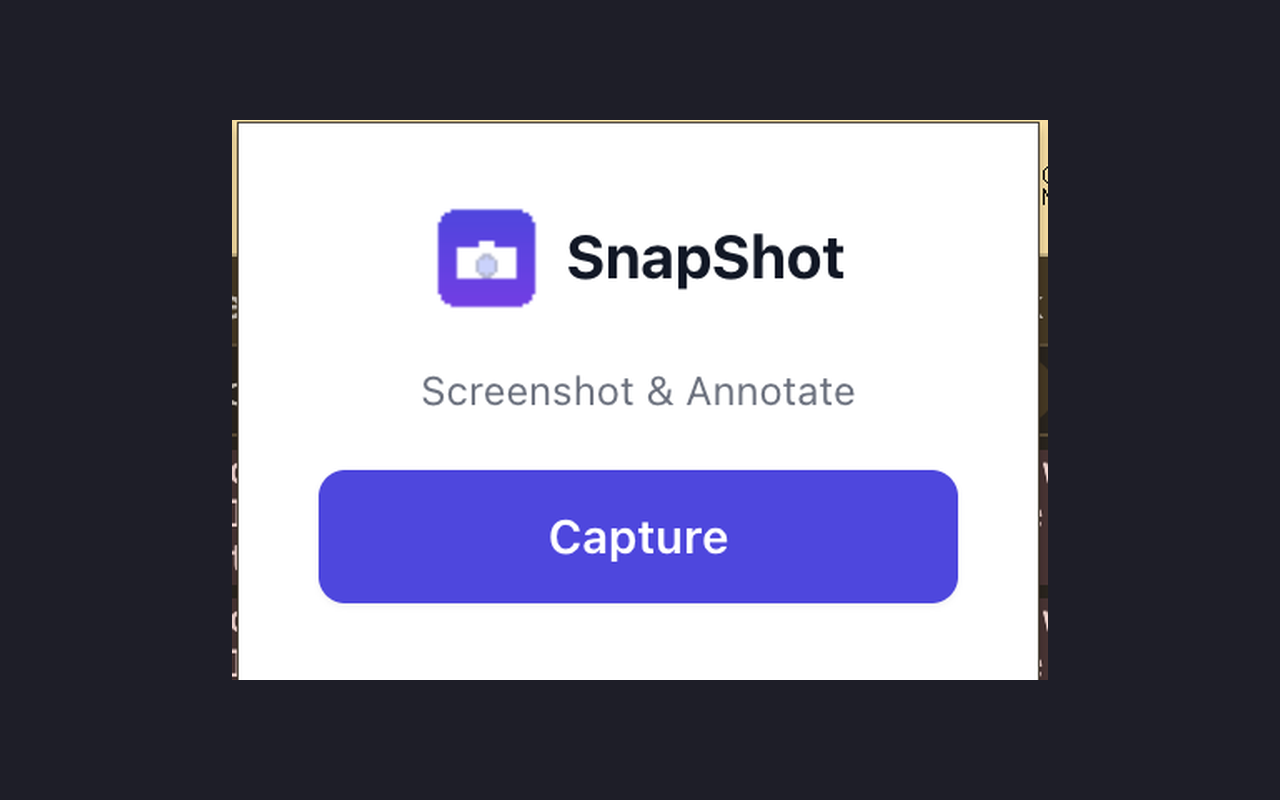
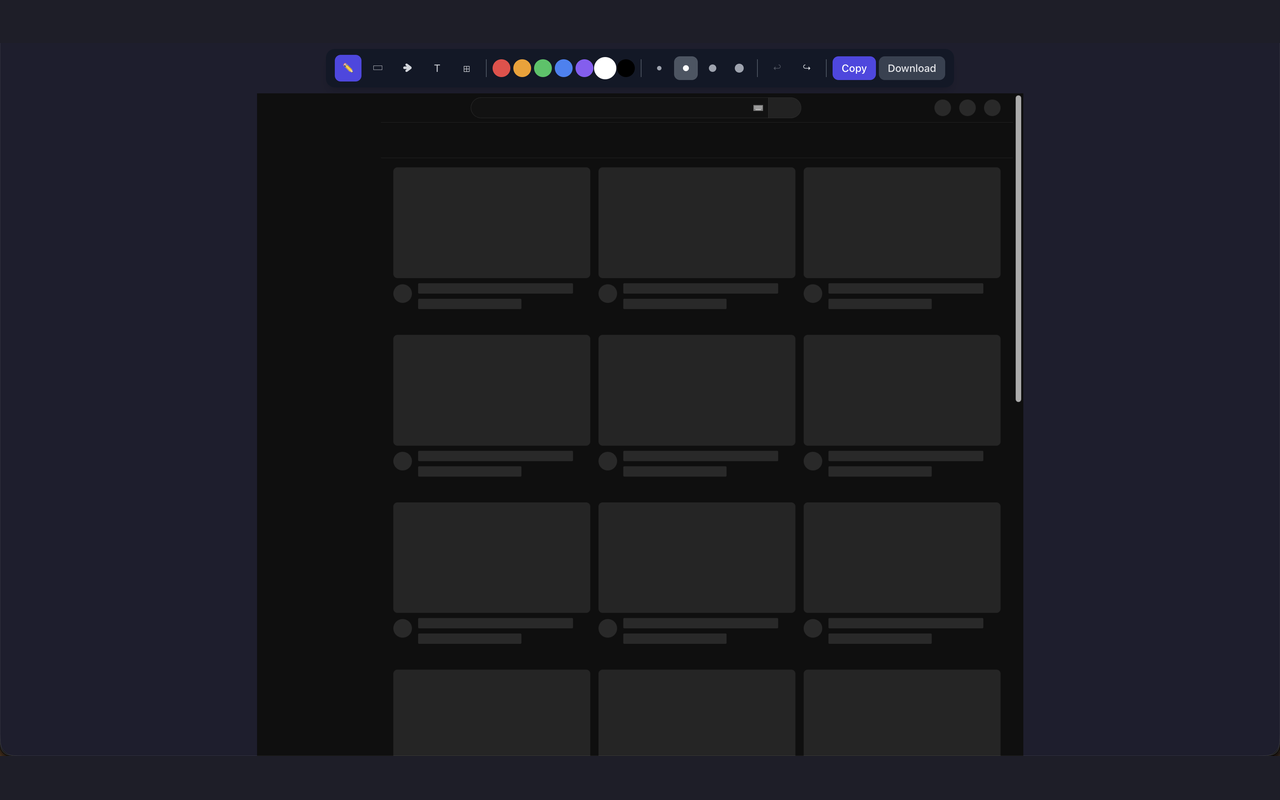
Click the extension icon, hit Capture, and your screenshot opens in a built-in editor. Mark it up with five annotation tools:
Pick from 7 colors, adjust stroke width, and undo/redo as needed (Ctrl+Z / Ctrl+Shift+Z).
When you're done, export in one click:
Perfect for:
Privacy first:
Screenshot → Annotate → Share. Done in 3 seconds.
Screenshots
What it does
Pen
freehand drawing for quick highlights or circles
Rectangle
draw boxes to call out specific areas
Arrow
point to exactly what matters
Text
type labels, notes, or callouts directly on the image
Blur
redact sensitive information (emails, passwords, personal data)
Copy to clipboard
paste directly into Slack, Notion, email, or any app
Download PNG
save a clean annotated image file
Bug reports
capture the issue, circle it, paste into your ticket
Quick feedback
annotate a design and send it to your team
Tutorials
add arrows and text to explain a workflow
Privacy
blur out sensitive info before sharing
All processing happens locally in your browser
Screenshots are stored temporarily in session storage and never leave your device
No accounts, no servers, no analytics, no data collection
Only two permissions: activeTab (to capture the current tab) and storage (to temporarily hold the screenshot)
When you'd reach for it
Bug reports someone can actually act on
Catch the broken state on screen, hit Capture, and the editor opens in a new tab. Box the element, point an arrow at the error text, add a short label, then press Copy and paste it into your issue tracker or chat. Nothing touches your Downloads folder unless you press Download.
Redacting before you send anything
Screenshots of dashboards and inboxes carry email addresses, tokens and customer names you did not mean to share. Drag the blur tool over those regions and the pixels are blurred, not covered with a shape you could move aside later. The blur is flattened into the PNG when you copy or download it.
Walking someone through a workflow
Pick a color from the seven in the toolbar, choose a stroke width, and stack arrows and text on top of the same shot. The stroke width also sets the text size, so callouts stay readable next to thick arrows. Download saves it as snapshot-<timestamp>.png for a doc or onboarding page.
Permissions & privacy
Single purpose
SnapShot has a single purpose: capturing a screenshot of the current browser tab and providing an inline annotation editor. Users can mark up the screenshot with pen, rectangle, arrow, text, and blur tools, then copy the result to clipboard or download it as a PNG file. No data leaves the browser.
It runs only the code shipped inside the package — no remote code is fetched.
Questions people ask
How do I take a screenshot and annotate it in Chrome?
Click the toolbar icon and press Capture. The shot opens in a new editor tab with five tools: pen, rectangle, arrow, text and blur. When you are done, Copy puts a PNG on the clipboard and Download saves it as a file.
Does it capture the whole page or only what I can see?
Only the visible area of the current tab. It uses the browser's visible-tab capture, so anything below the fold is not in the image. For a long page, scroll to the part you need and capture that view.
Can I undo an annotation?
Yes, with Ctrl+Z, or Cmd+Z on a Mac, and Ctrl+Shift+Z to redo. The toolbar has undo and redo buttons for the same thing. Each shape stays a separate object in the editor until you export, so undo removes them one at a time.
What permissions does it use, and where does my screenshot go?
The manifest declares two permissions, storage and tabs, and no host permissions. The tabs permission is used to capture the visible tab and to open the editor page in a new tab; the captured image is written to chrome.storage.session, which the browser clears when the session ends. There is no content script, so it does not run inside the pages you browse.
What format is the export, and can I paste it directly into Slack or Notion?
The export is a PNG in both cases. Copy writes a PNG image to the clipboard, so you can paste it straight into a chat message, a document or an email. Download writes the same image to your downloads as snapshot-<timestamp>.png, with all drawings and blur already baked in.
Related extensions
 Eye Rest Reminder78 users
Reminds you to rest your eyes and prevent digital eye strain with gentle break reminders.
 Quick Memo74 users
A simple and elegant memo extension for your browser
 YouTube Detox47 users
Removes recommended videos from YouTube homepage and video pages.
 Focus Guard3 users
Block distracting sites with "Why are you here?" prompt. Reduce YouTube, X, Reddit, Instagram use — digital detox, 100% local.
 Notion Table & Database to CSV / Markdown2 users
Notion table to Markdown or CSV in one click. Adds a Copy button above any Notion table or database view. No login, no API.
 Air Quality Monitor
Real-time air quality monitor for Korean cities (PM2.5/PM10)